
Tasks
Tasks are how teams plan and track the work that needs doing in Heyweek — from a quick action item to a deliverable that runs across an entire project.
Tasks are how teams plan and track the work that needs doing in Heyweek — from a quick action item to a deliverable that runs across an entire project.
Overview
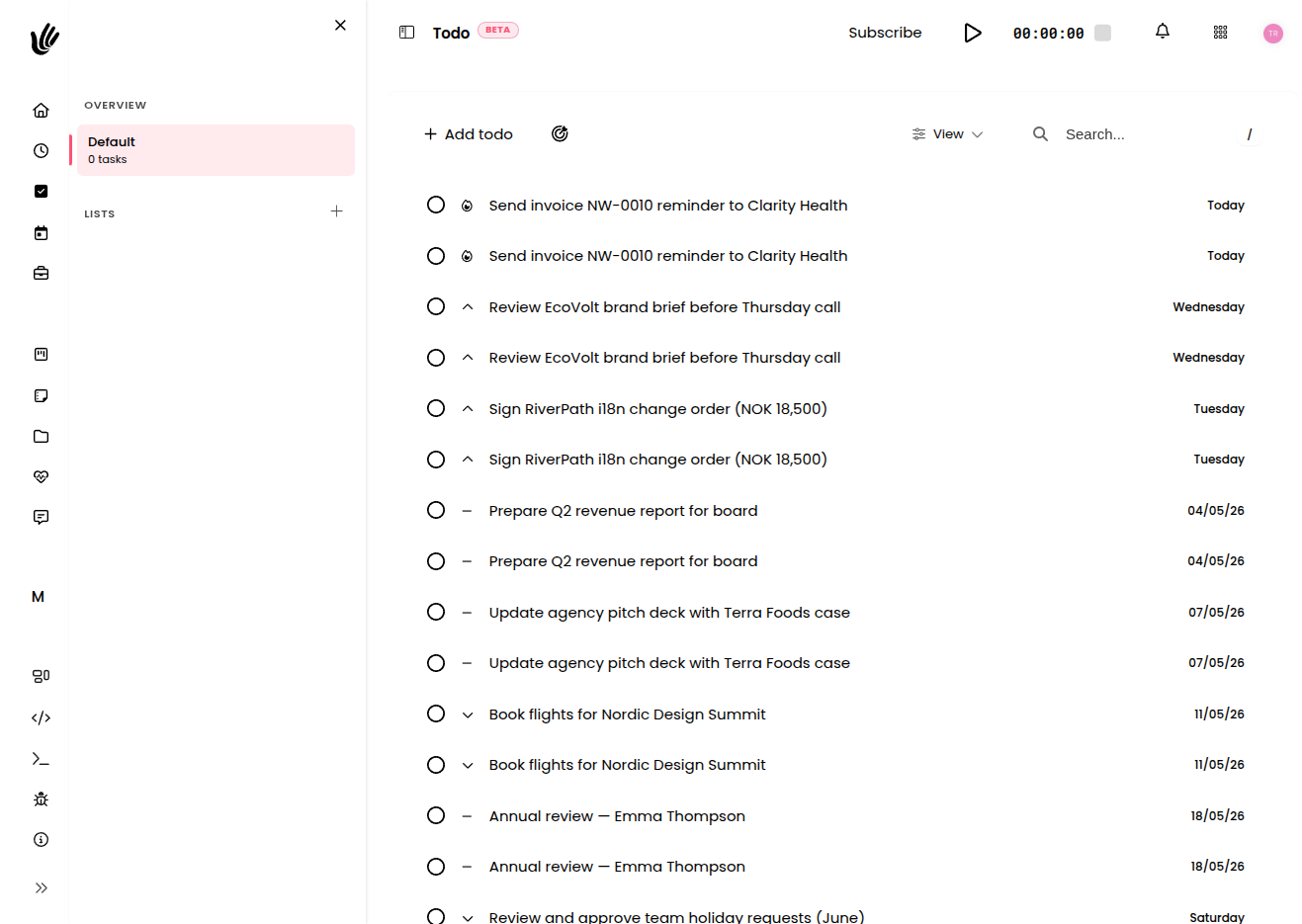
A task captures a single piece of work: what needs to happen, who owns it, where it stands, and when it's due. Tasks carry properties that describe the work, and those properties power every view and report. You can see the same tasks as cards on a Kanban board or as a straightforward list, and lightweight personal to-dos sit alongside them for the small things that are only on your own plate.
Because a task is the shared unit of work, progress you make on it shows up everywhere the work appears — on the board, in the project, and in your reports.
Key features
- Create & assign — Add a task with a clear title and assign it to the person responsible.
- Status — Track where the task sits in your workflow, from not started to done.
- Due date — Set when the work is expected to be finished.
- Priority — Flag what matters most so important work surfaces first.
- Tags — Categorize and group tasks across projects.
- Project link — Connect a task to the project it belongs to.
- Multiple views — See tasks as a visual board or as a list, whichever fits the moment.
Tasks vs. to-dos
Heyweek separates shared work from your personal list on purpose:
- A task is shared project work — visible to the team, assignable, and tracked through reports and timelines.
- A to-do is personal and lightweight — the things only you need to remember, kept off the shared board.
Reach for a task when others need to see or track the work; reach for a to-do when it's just for you.
Creating and assigning tasks
- Create a task and give it a short, action-oriented title.
- Assign it to the person responsible so ownership is clear.
- Set a status, a due date, and a priority so it lands in the right views.
- Add tags to group it with related work across projects.
- Link it to the project it belongs to, so it rolls into that project's tracking.
TIP
Always set an assignee and a due date. Unassigned, undated tasks are the easiest ones to lose track of.
Task properties
Every task carries a set of properties that say what the work is and where it stands — title and description, status, assignee, due date, priority, tags, and the project it belongs to. Filling these in consistently is what makes your boards, lists, and reports trustworthy. For a full breakdown of each property and what it drives, see Task properties.
Organizing with boards and lists
The same tasks can be viewed in whatever layout suits the work:
- A board shows tasks as cards that move across columns as work advances — best when you want to see a flow and move work through stages with your team.
- A list is best for detailed, line-by-line work where the visual flow matters less.
Both views filter, sort, and group by the same properties — status, assignee, priority, due date, and tags — so you can focus on a person, a slice of work, or everything at once.
NOTE
A board and a list are two views of the same underlying tasks, not separate copies. Update a task in one place and the change shows up everywhere.
How tasks connect to the rest of your work
- Tasks belong to projects and roll up into project tracking.
- Time you log against a task feeds time tracking, so effort stays tied to the work.
- Completed and outstanding tasks feed your reports, turning day-to-day work into a clear picture of progress.
Works with the rest of Heyweek
- Describe and refine work with Task properties.
- Visualize flow on Boards, and keep personal items in To-dos.
- Tie tasks to the Projects they belong to.
- Log effort with Time tracking and review it in Reports.
- Group related work across projects using Tags.
Tips
- Keep titles short and action-oriented so a list of tasks reads like a list of next steps.
- Set status, due date, and priority up front so each task lands in the right views automatically.
- Use tags consistently — cross-project views and reports are only as good as the tags behind them.
- If a personal to-do turns into real project work, recreate it as a task so the team can see and track it.