
Time Tracking
Track where your time goes with a built-in timer, manual entries, and rich filtering — the heart of Heyweek. 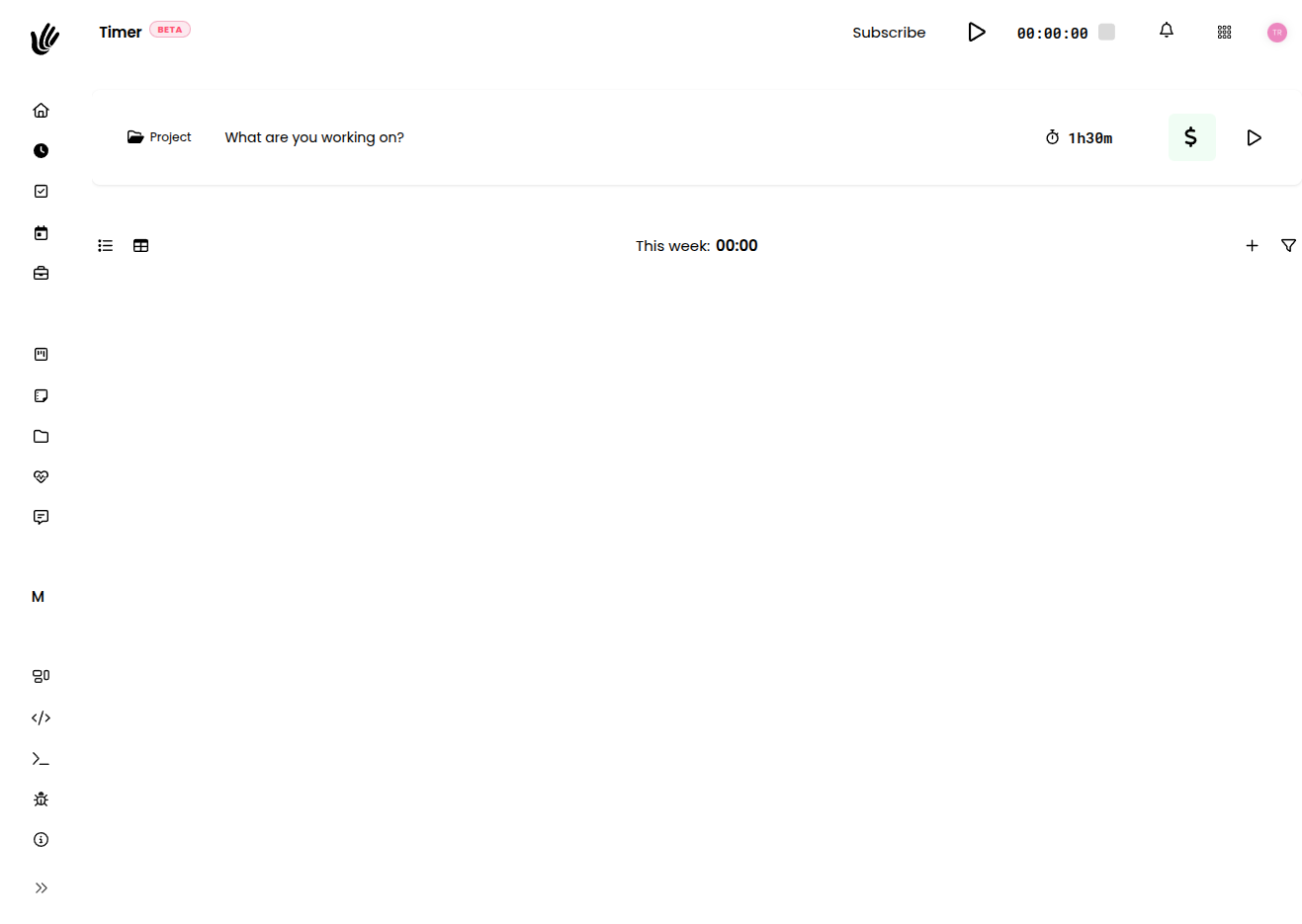
Overview
Time tracking in Heyweek is designed to stay out of your way. Start a timer when you begin work, or log time after the fact — either way, every entry can be tied to a project and client so it flows straight into reports and invoices. Because tracked hours are connected to the rest of your workspace, you spend less time reconstructing your day and more time getting paid for it.
Whether you bill clients by the hour, want to understand where your week actually went, or simply need a record of effort against a project, time tracking is the layer that ties activity to outcomes.
Key features
- One-click timer — Start, pause, resume, and stop tracking from anywhere in the app.
- Manual entries — Log time after the fact by duration or by start and end time.
- Project & client links — Attach each entry to a project so hours roll up into reports and invoices.
- Descriptions & hashtags — Describe what you worked on and tag entries with
#hashtagsfor easy filtering. - Grouped, filterable list — Entries are grouped by day with daily and total sums, and can be filtered by project or hashtag.
- Edit and correct — Adjust any entry's description, times, or project after saving.
- Track anywhere — Start and stop the same timer from the web app, mobile, or the CLI, with everything kept in sync.
Using the timer
- Open the timer and type a short description of what you're working on.
- (Optional) Pick a project from the project picker — search by name and select. Clearing it leaves the entry unassigned.
- Press Start. The timer runs at the top of the app so it's always visible.
- Pause and resume as needed, then press Stop to save the entry.
If you change your mind, you can discard a running entry instead of saving it. Because the running timer stays visible across the app, you can keep working in projects, boards, or files without losing track of the clock.
TIP
Add a description as you start rather than at the end. A few words now ("draft homepage copy") is far easier than reconstructing a whole afternoon later — and it makes your reports and invoices read clearly.
Logging time manually
Not every block of work happens at a desk. Use Add manually to create an entry after the fact:
- By duration — enter how long you worked (e.g.
1:30for an hour and a half). - By time — set a start and end time; switch between duration and time modes at any point.
Heyweek validates the entry for you — for example, it won't let the end time fall before the start time, and you can quickly set the end to "now". Manual entries behave exactly like timer entries, so they can carry a description, a project, and hashtags, and they roll into the same reports.
Tracking against projects, tasks, and clients
Linking an entry to a project is what makes time tracking powerful:
- Hours roll up per project so you can see total effort at a glance.
- When a project is connected to a client, that time becomes billable and ready to invoice.
- Unassigned time still gets recorded, so you never lose a block of work — you can attach it to a project later.
Keeping entries attached to the right project keeps your Reports accurate and your Invoicing honest.
Editing and correcting entries
Mistakes happen — you forget to stop a timer, or pick the wrong project. Every entry can be edited or deleted after the fact:
- Fix the description, adjust the start and end times, or change the duration.
- Reassign an entry to a different project or remove the project entirely.
- Add or remove
#hashtagsto recategorize how an entry shows up in reports.
Organizing entries
- Entries are grouped by day in the timer list, with daily and total sums.
- Filter by project or by hashtag to focus on a slice of your work; clear the filter to see everything again.
- Use a consistent set of hashtags (like
#meeting,#admin, or#research) to slice reports without creating extra projects.
Where your time goes next
Tracked time is the foundation for the rest of Heyweek:
- Reports turn entries into time-by-project, time-by-person, and profitability views.
- Invoicing can bill tracked hours directly, so you never leave billable time on the table.
- Boards and Projects keep tracked work connected to what it's for.
Tracking on the go
Time tracking isn't tied to your desk. The mobile apps and the CLI can start and stop the same timer, and every entry stays in sync across devices. Start a timer on your laptop, stop it from your phone — it's all one record.
IMPORTANT
Keep your time honest. Tracked hours flow straight into client reports and invoices, so log what you actually worked and correct entries promptly. Accurate time is the difference between trustworthy billing and awkward conversations later.
Tips
- Add a description as you start — it's much easier than reconstructing your day later.
- Use a consistent set of
#hashtagsto group similar work across projects. - Review the previous day's entries each morning to catch anything you forgot to stop or log.
- Attach time to a project whenever you can, so reports and invoices stay complete.