
Clients
Manage your client relationships, contacts, and billing information in one place. Clients sit at the heart of Heyweek — every project, invoice, and report…
Manage your client relationships, contacts, and billing information in one place. Clients sit at the heart of Heyweek — every project, invoice, and report can tie back to the company you're working for, so you always know who you're billing and what you've delivered.
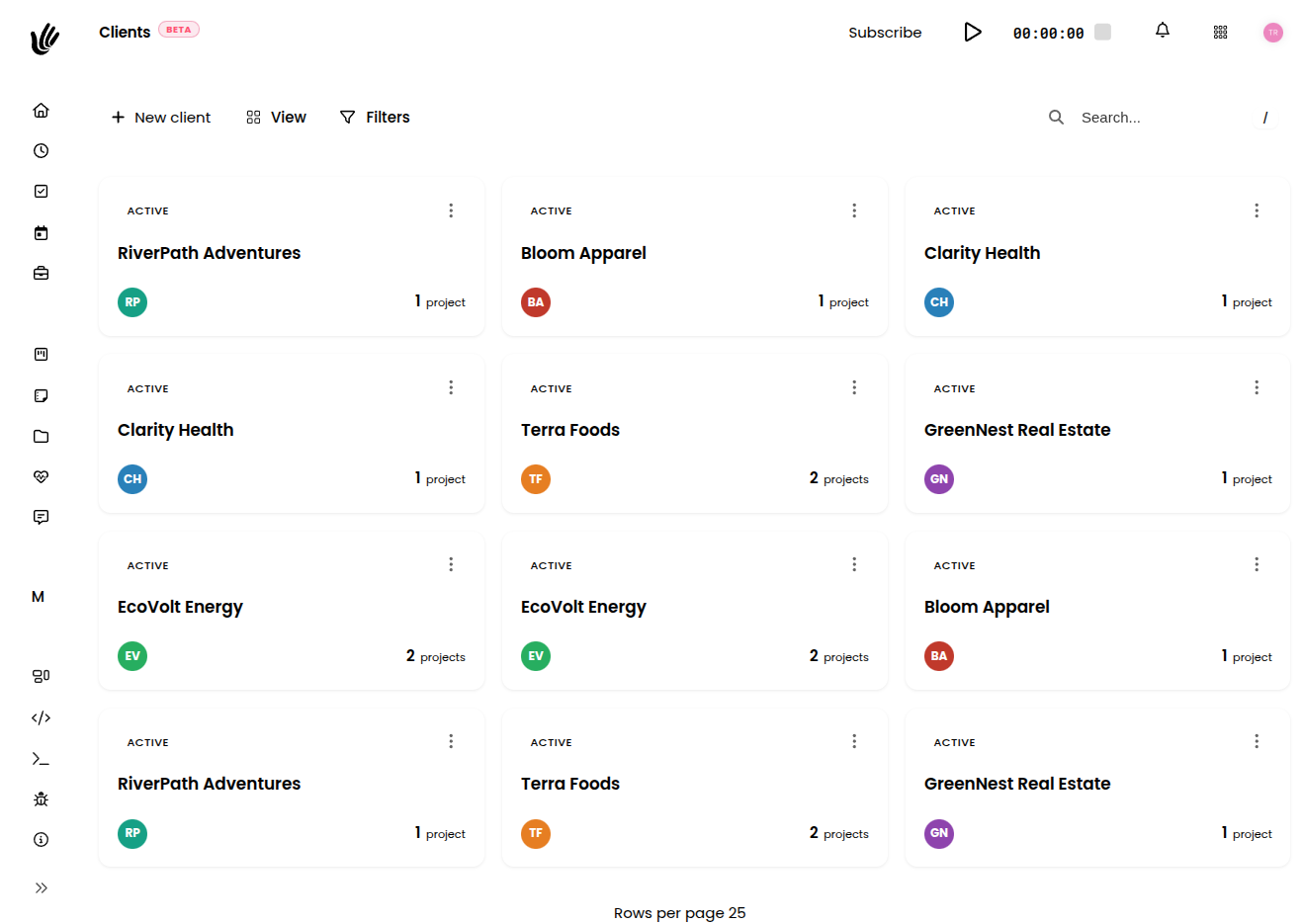
Overview
A client record keeps everything about an organization you work with in one place: its details, the people you deal with, billing preferences, and the projects you run for them. Instead of scattering this across spreadsheets and inboxes, you build a single record per client that the rest of Heyweek draws on — when you invoice, run reports, or share work through the client portal.
Key features
- Client profiles — Company name, address, website, and contact details in one searchable list.
- Contacts — Keep a main contact plus as many additional contacts per client as you need, each with their own details.
- Notes — Keep dated notes on a client so context and history stay with the record.
- Billing preferences — Store a client's currency, hourly rate, payment terms, and invoice email so they flow into every invoice.
- Project history — See every project associated with a client from their profile.
- Profitability — Track how much each client and their projects contribute to your finances.
- Client portal access — Share selected work with a client through their dedicated Client View.
- Active & inactive — Mark clients inactive to keep your list focused while preserving their history.
Getting started
Set up your client list and connect it to the rest of your work:
- Add a client. Create a new client and enter the organization's name and core details.
- Add contacts. Attach the people you deal with — names, emails, and phone numbers — and set a main contact.
- Set billing preferences. Record the address, currency, hourly rate, payment terms, and the email invoices should go to.
- Link projects. Associate existing or new projects with the client.
- Review their activity. Open the client to see their projects, notes, and profitability at a glance.
TIP
Set billing preferences once when you create a client. They flow straight into invoicing, so you don't re-type them on every invoice.
Client details and contacts
Each client record holds the core business information — company name, address, website, and contact details — together with the people you communicate with. Add a main contact plus as many additional contacts as you need, each with their own email and phone number, so you always reach the right person. Keep dated notes on the record to capture context that would otherwise get lost in email.
Linking clients to projects and invoices
Clients become powerful once they're connected to your work. Link a client to one or more projects and the relationship runs both ways: the client profile shows their full project history, and each project knows who it's for.
When you create an invoice, choose the client to bill and Heyweek pulls in their stored billing preferences automatically. Tracked time and charges from the client's projects can flow into invoice line items, so billing reflects the work you actually did. Over time this gives you a clear picture of each client's revenue and profitability.
Finding and organizing clients
As your list grows, the client overview helps you stay organized:
- Search for a client by name to jump straight to their profile.
- Filter between active and inactive clients to focus on who you're working with now.
When you stop working with a client but want to keep their history, mark the record inactive instead of deleting it. This removes the client from your active list while preserving their projects and invoices for reference and reporting.
NOTE
Marking a client inactive keeps their history intact. Their past invoices and projects still appear in your records and reports — they're simply moved out of your day-to-day view.
Works with the rest of Heyweek
- Connect each client to the projects you deliver for them.
- Bill stored client details directly through Invoicing.
- Share project progress and files securely through the Client View portal.
- See client revenue and profitability in Reports and Cashflow.
- Explore everything the feature offers on the Clients feature page.
Tips
- Add every contact you work with — having the right email on file makes invoicing and sharing faster.
- Set a client's currency and rate up front so invoices are correct from the first one.
- Use notes to record the things you'd otherwise lose in email — agreements, preferences, and follow-ups.
- Mark inactive clients inactive rather than deleting them so your historical reports stay complete.